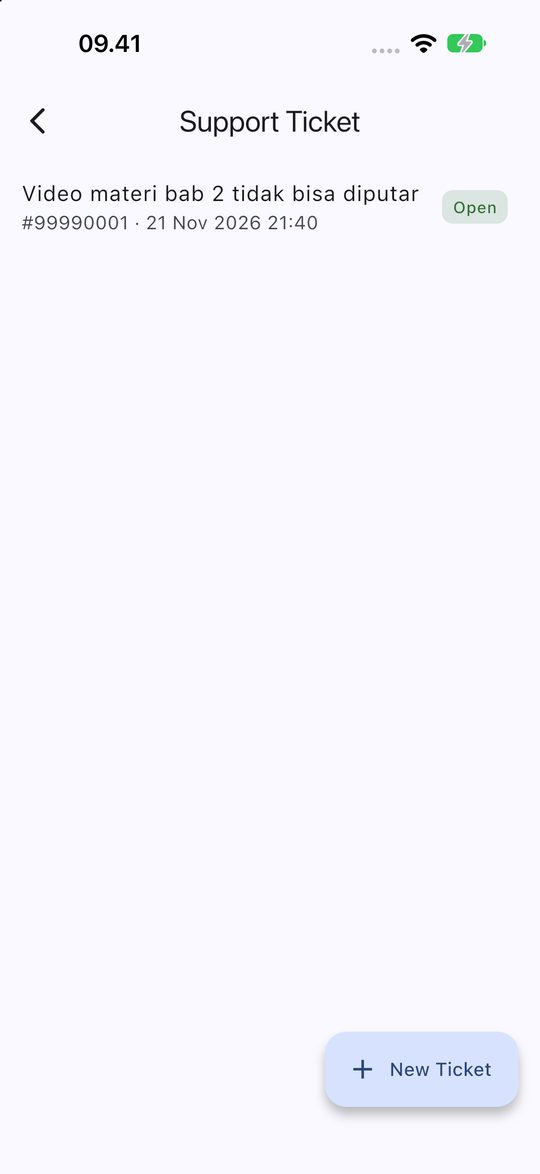
Support Ticket
Support Ticket is for issues that need an admin, including course warranty claims.
1. Creating a ticket
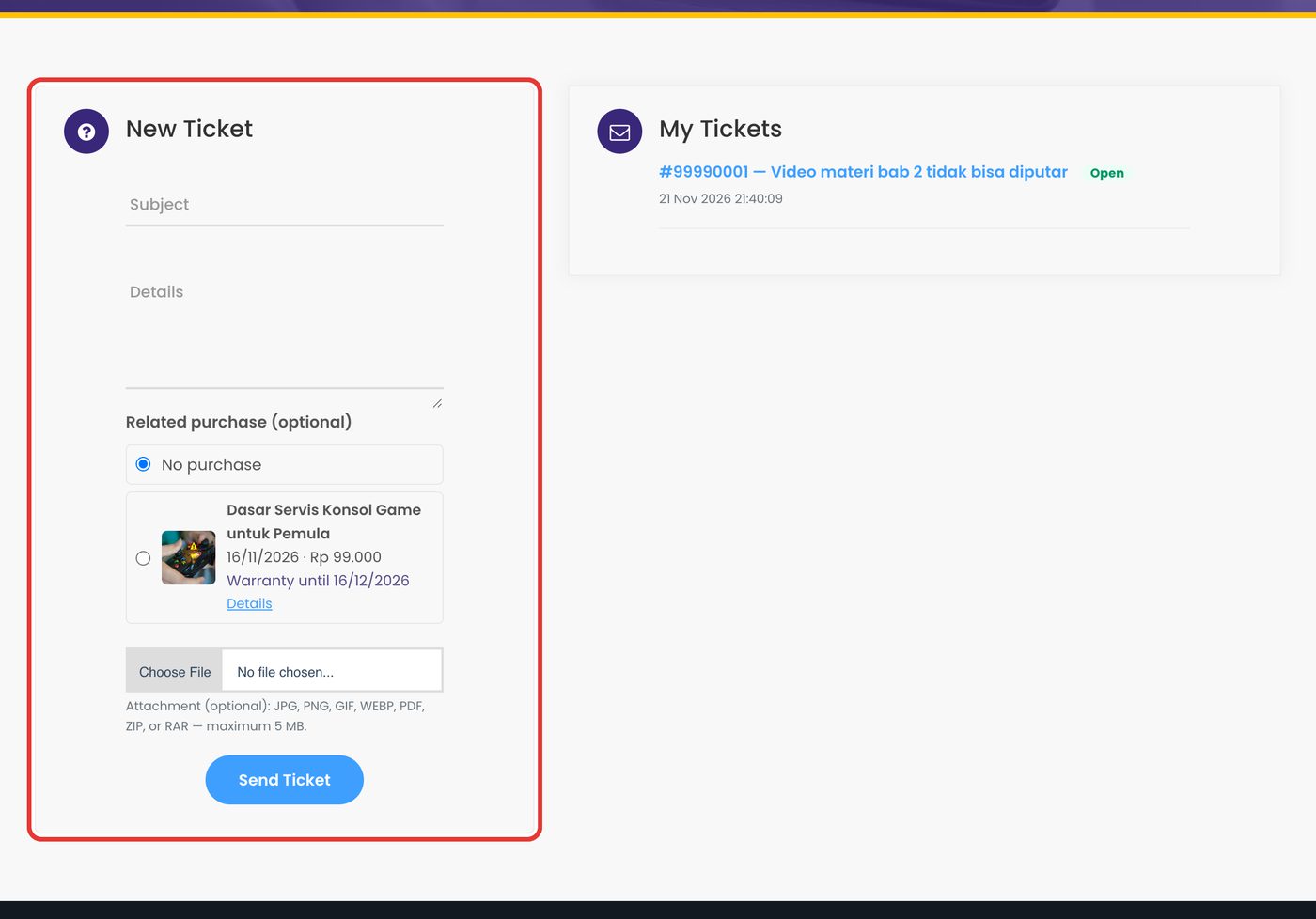
- In New Ticket, fill in the Subject and Details of your issue, and attach a file if needed.
- Choose a Related purchase (optional) if the ticket is about a specific purchase, or leave it as No purchase.
- Click Send Ticket.
2. Warranty claims
- Purchases available for a claim are paid courses with a warranty that is still running.
- One purchase can have only one open claim ticket.
3. Replies and status
Open a ticket from My Tickets to read and reply. Open means it is still being handled; a ticket Closed by the admin cannot be replied to — create a new ticket if the problem continues.
4. In the app
Open the Account tab › Support Ticket, choose Learn, then Create New Ticket. The same tickets appear on the web.