
My Courses · Purchases
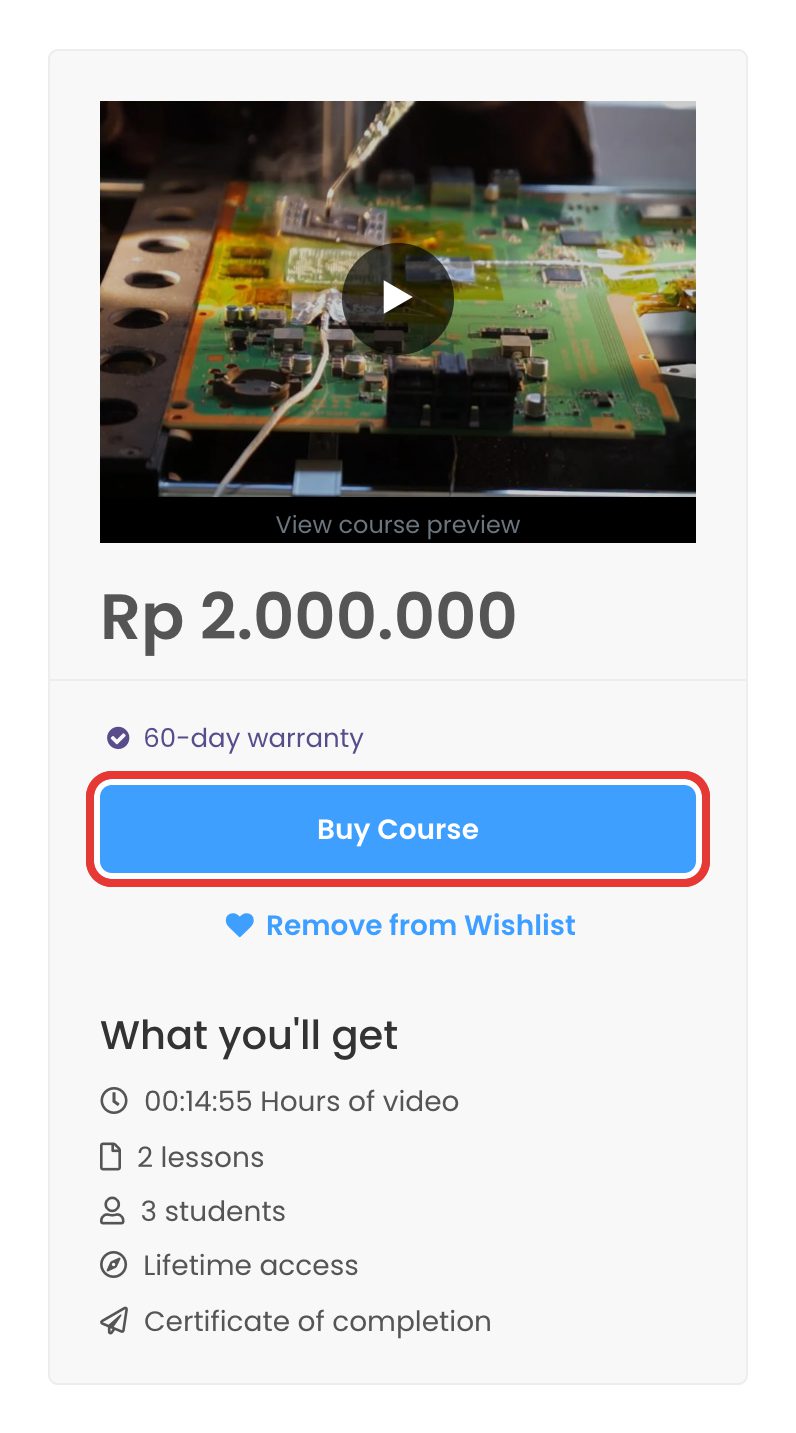
Open a course page from the catalog. The button adapts: free courses can be joined right away, paid courses go through checkout.
1. Buttons on a course page
| Button | Meaning |
|---|---|
| Enroll for Free | Free course — you are enrolled immediately |
| Buy Course | Opens the checkout for that course |
| Add to Cart | Pay later together with other items |
| Enrolled — Continue Learning | You already own this course |
| Log In to Enroll | Sign in first |
2. Paying
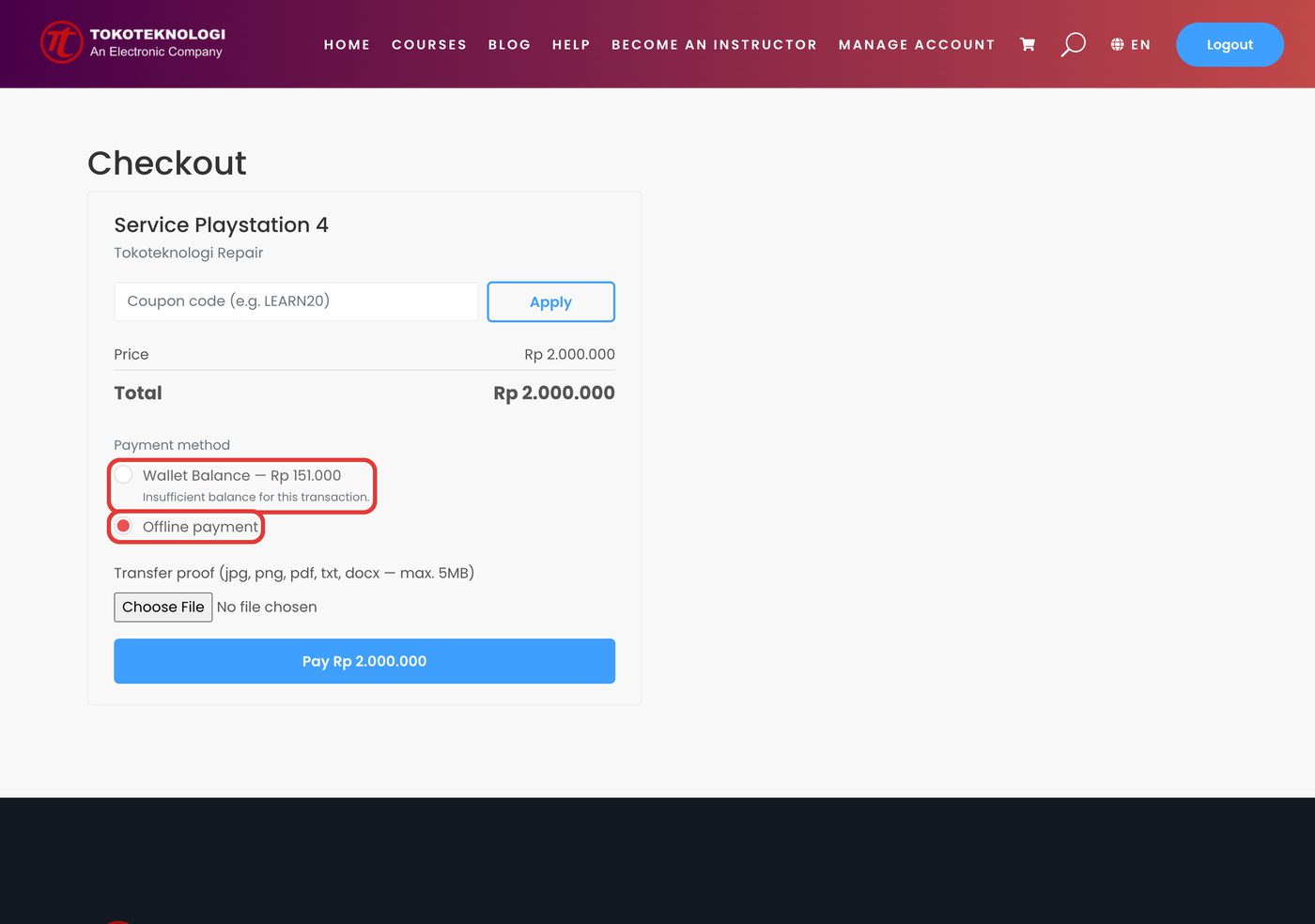
- At checkout, enter a coupon code if you have one and click Apply.
- Choose a payment method: Wallet Balance (disabled if your balance is too low) or bank transfer.
- For a bank transfer, follow the instructions shown, upload the transfer proof, and submit.
- Transfer payments stay Awaiting Approval until an admin checks them. Once approved, the course appears in My Courses.
Tip: Follow the status in Payment History.
3. Good to know
- While a transfer for the same item is still awaiting approval, a new submission for that item is refused.
- If the price changed after the checkout page was opened, the transaction is refused — reload the page and pay again.
- Paid ebooks are bought through the cart.
- Paid courses with a warranty show a …-day warranty on their page.